

TV Stick Setup Guide
Connect Your Nento TV Stick to Wi-Fi and Pair Your Screen
Follow these simple steps to get your Nento screen online and connected to your account.
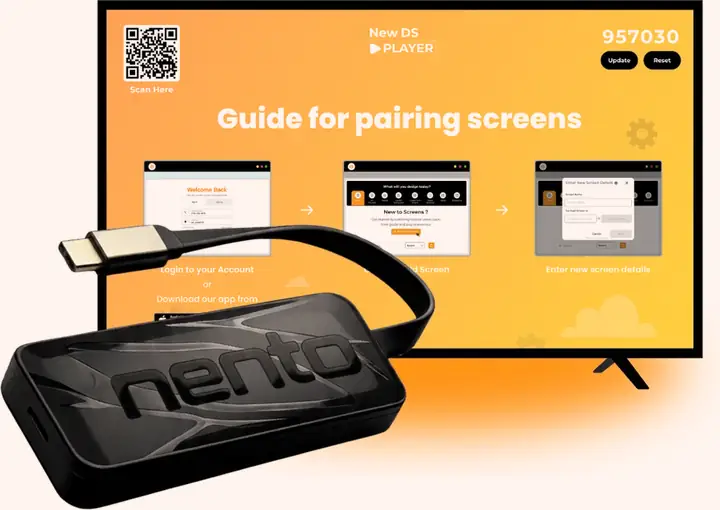
Don’t have an account yet?
Visit Nento.com and register for a free account before you begin.
Connect your screen in minutes
2:02 duration
1
Plug in the Nento TV Stick
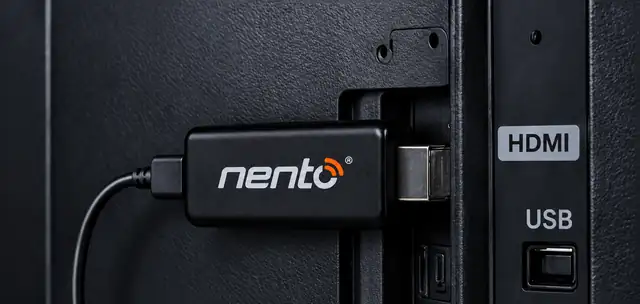
Plug the Nento TV Stick into an HDMI port on your TV, then connect its power cable to your TV’s USB power port. Turn on the TV and select the matching HDMI input.
2
Choose Your Wi-Fi Connection Method
You have two ways to connect the stick to Wi-Fi.
Option 1Option 1Use Your TV Remote
If your remote works with the stick, return to the stick’s home screen and follow these steps:
Settings
Network & Internet
Wi-Fi
• Your Network
• Other Network
• Another Network
- 1Select Settings on the home screen.
- 2Go to Network & Internet.
- 3Choose your Wi-Fi network and enter its password.
Option 2Option 2Use the Menuonline App
Download the Menuonline Business and Remote App from the Apple App Store or Google Play.
 Menuonline
Business and Remote App
Pause this video while you install it, if you need to.
Then follow these steps in the app:
1
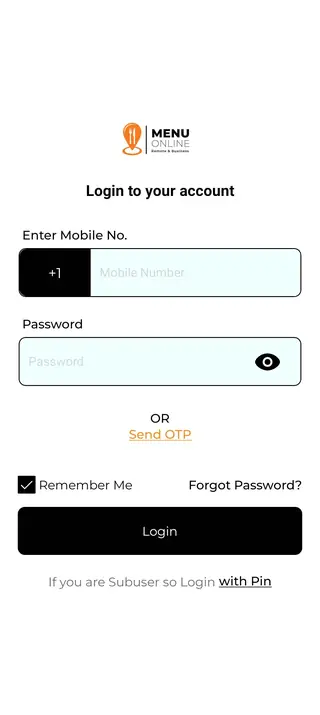
Open the app and sign in with the account you created earlier.
2
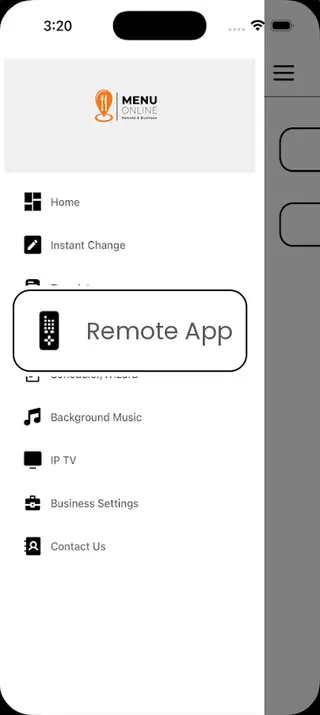
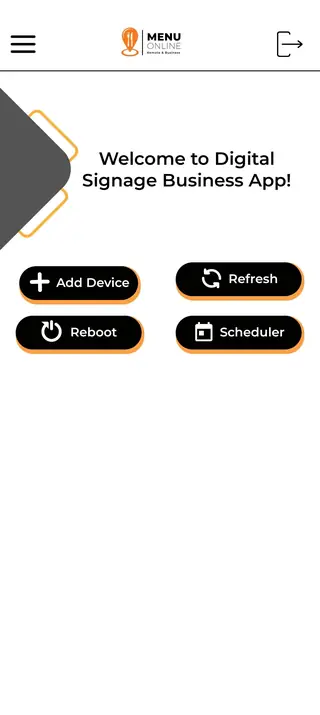
Tap the three dots in the top-left corner, then select Remote App.
3
Tap Add Device and select the screen number shown on your TV.
4
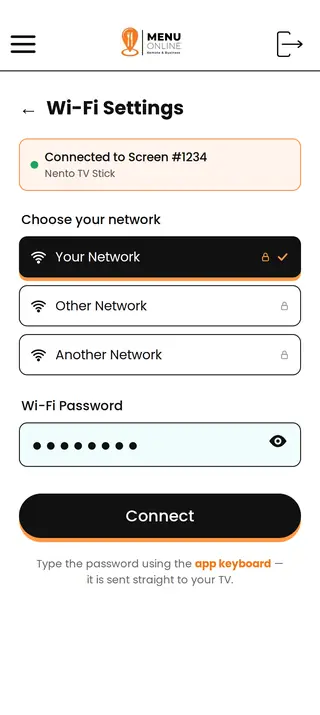
Once connected, select Add Wi-Fi or Wi-Fi Settings, choose your network, and enter the password using only our remote app keyboard.
3
Pair Your Screen with Your Account
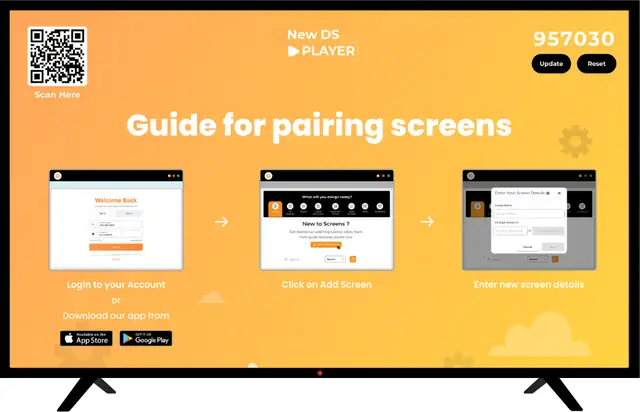
- 1After Wi-Fi connects, look for the screen number in the top-right corner of your TV.
- 2Log in to your Nento back office, open the Screens tab, select Add Screen, and enter that number.
- 3When the status says “Paired and ready to fetch,” your screen is ready.
- 4You can now send menus, promotions, and other content to your TV.
That’s it — your Nento screen is set up and ready to go!
You can now send menus, promotions, and other content to your TV.
Need Help?
If you have any issue, please don’t hesitate to contact us.
+1-888-458-3995
We are here to help.