NENTO SETUP HELP
Let’s get your
screen connected.
Please download the app and watch the setup video, or call us for help.
Are you coming from Amazon?Create your free account to set up your new device.Sign Up Free
Talk to our team for help with setup.
OR
1. Plug in
your device
2. Connect
to Wi-Fi
3. Pair
your screen
2Step 2
Connect your stick to Wi-Fi
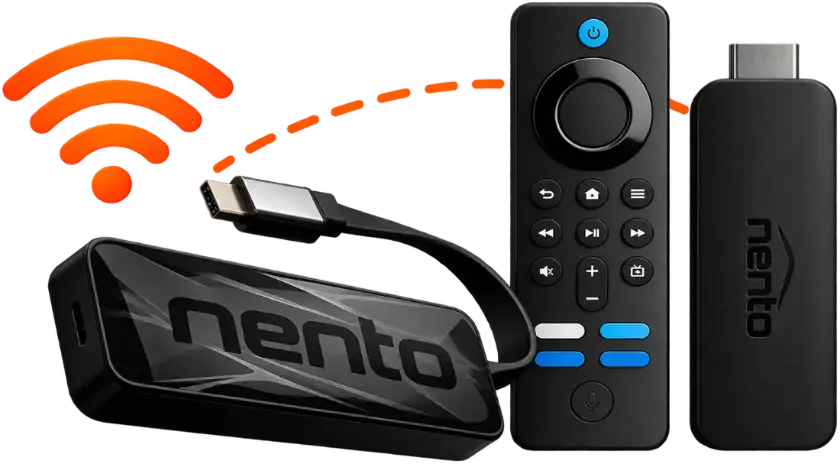
Plug your stick into your TV. Choose how to control it, then open Settings → Wi-Fi and connect to your network.
Option 1: Use your TV remote
OR
Option 2: Use your phone
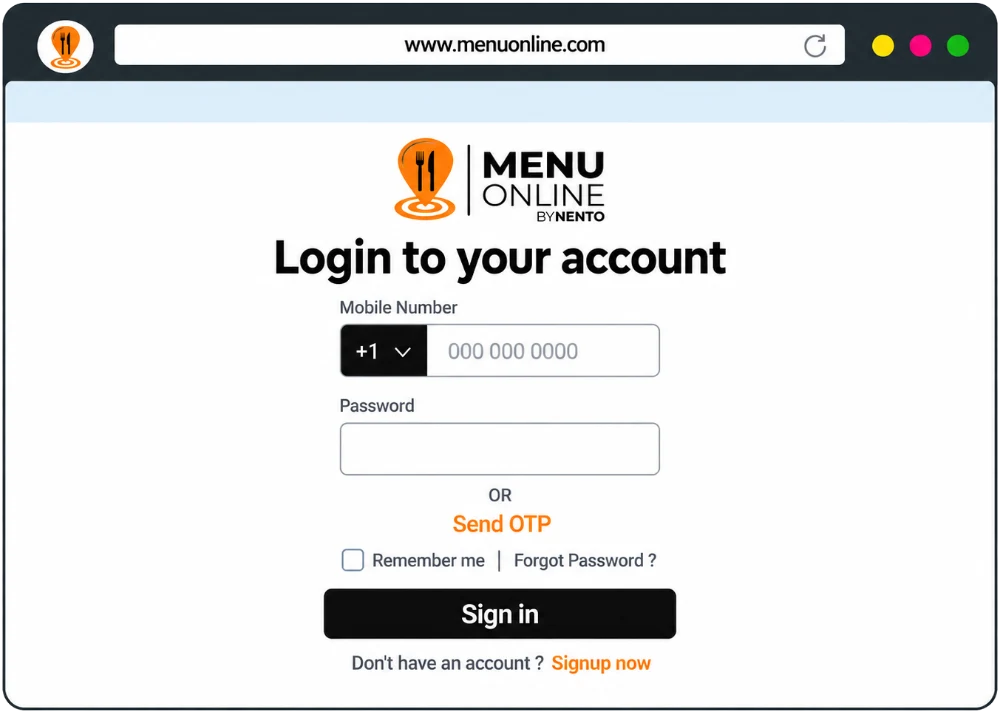
Download MenuOnline Business and MenuOnline Remote.
3Step 3
Pair your screen
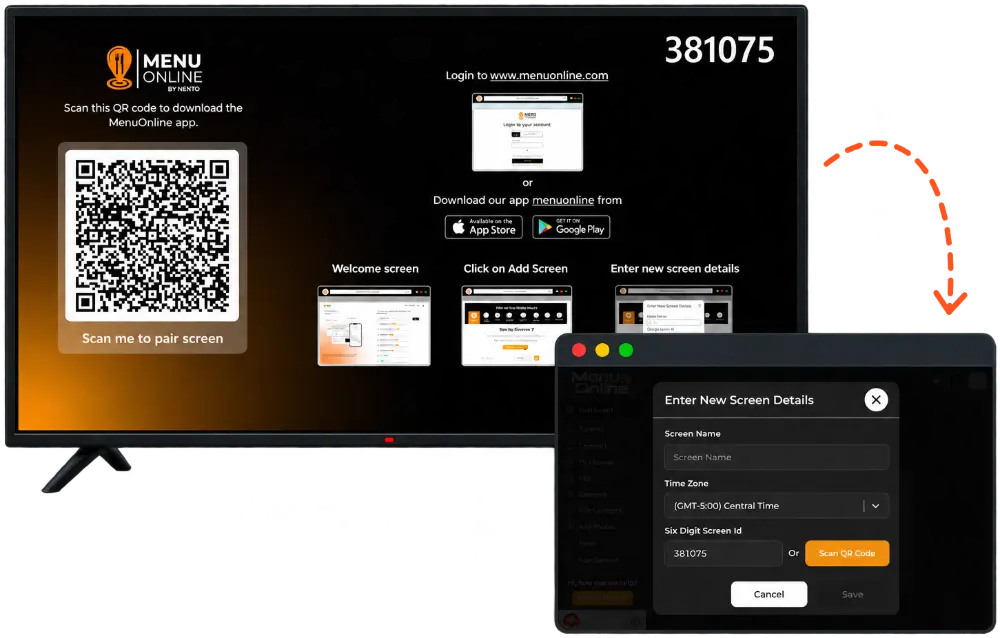
In your account, go to Screen and enter the 6-digit code displayed on your TV.
Nento Digital Signage FAQ’s
1. How do I connect the Nento device to my TV?
First, sign up for a free Nento account. Plug the device into your TV’s HDMI port and connect its USB power cable to your TV’s USB port, not a wall outlet. Select the matching HDMI input.
Connect to Wi-Fi using a compatible TV remote: open the device’s Settings > Network. Or use the MenuOnline Business & Remote app on Android or iOS (see Question 5).
In your Nento account, open Screens > Add Screen and enter the six-digit code in the top-right corner of your TV. Your screen is paired and ready to receive content.
HDMI + TV USB
Connect to Wi-Fi
Enter 6-digit code
2. How do I connect my smart TV to Nento?
Open your smart TV’s app store and search for Nento or MenuOnline. If available, install and open the app, then follow the on-screen instructions.
Log in to your Nento account, open Screens > Add Screen, and enter the six-digit code shown in the top-right corner of the TV.
If your TV does not support the app, order a Nento device from our Amazon store and connect it through HDMI.
Find the TV app
Add your screen
Ready to display
3. How do I create my first piece of content?
Log in to Nento and choose the option that works best for you:
- Nento Editor: Choose a template and customize text, photos, prices, products, services, or promotions.
- Canva: Create your design in Canva and bring it into Nento.
- Playlists: Upload existing images or videos and arrange them in a playlist.
When ready, select your screen and publish. Our team can also help you create your first design.
Choose or upload
Customize
Publish to screen
4. Why doesn't the Nento device come with a remote?
You can control the Nento device using a compatible TV remote, so a separate remote is not necessary.
If your TV remote does not support this feature, use the MenuOnline Business & Remote app to turn your phone into a Bluetooth remote. One app lets you switch between and control multiple Nento devices.
Compatible TV remote
Or use your phone
Control your device
5. How do I connect the remote app to my device?
- Create your Nento account and download the MenuOnline Business & Remote app for Android or iOS.
- Turn on Bluetooth and open the app near your Nento device.
- Tap the three-line menu in the top-left corner.
- Select Remote App > Add Device.
- Select the screen number that matches your TV and follow the prompts to connect.
Allow Bluetooth or nearby-device permissions when requested. Use up, down, left, right, OK, and back to navigate. For Wi-Fi setup, open Settings > Network and select your network.
Open Remote App
Add matching device
Navigate your screen
6. I'm not very tech-savvy. How can I get help?
Our team can walk you through connecting your screen, setting up your content, and using Nento. Book an onboarding session or contact us for assistance.
You can also follow our setup videos at your own pace.
Book onboarding
Connect together
Get comfortable
7. How easy is it to upload or create content?
Nento is designed to be simple, even without design experience. Upload your existing images and videos, or choose a template and customize it for your business.
Publish right away or schedule your content for later. Manage content and make updates from your phone, tablet, or computer.
Upload or create
Edit or schedule
Display your content
8. Is training provided for new users?
Yes. During your onboarding session, we’ll help you connect your screen and show you how to create, upload, update, and schedule your content.
We’ll also explain how to manage your screens and where to find support whenever you need it.
Guided onboarding
Learn content tools
Ongoing support
9. Do I need one Nento device per screen?
Yes. Each screen requires its own Nento device when using our hardware. Manage screens individually or display the same content across multiple screens.
If your smart TV supports and runs the Nento app directly, you do not need an additional Nento device for that screen.
One device
Per screen
Manage in one account
10. Is internet needed to play my content?
Internet is needed for initial setup and to download content to the Nento device. Once downloaded, images and videos are stored on the device and continue playing without internet.
Exclusive to Nento customers: content already downloaded in the MenuOnline Business & Remote app can be transferred directly from your phone to your Nento device through Bluetooth. The two devices communicate directly, so you can upload that content without internet.
Features that use live online information still require internet access.
Downloaded app content
Direct Bluetooth transfer
Stored for playback